External means elsewhere
An automatic copy on the device is not the pre-update backup.
Save the .cix-backup to a USB drive, a removable card or an approved shared drive. If the app or the device becomes unusable, a copy kept on that same device may be out of reach.
Before an update can arrive
Finish what is open and note a baseline.
- Finish any store, removal, pick list, box check, fill, import or correction in progress.
- Leave warnings as they are; do not clear them for the update.
- Note the dashboard's counts and the backup status.
- Search several known vials and note their barcodes and where each is stored, to compare afterward.
- Note the version, build and database schema at the bottom of Settings.
Settings → Data → Back up or restore
Save a current external backup.
The button reads Save a copy or Save backup, depending on the version. The pictures show the version most labs update from.
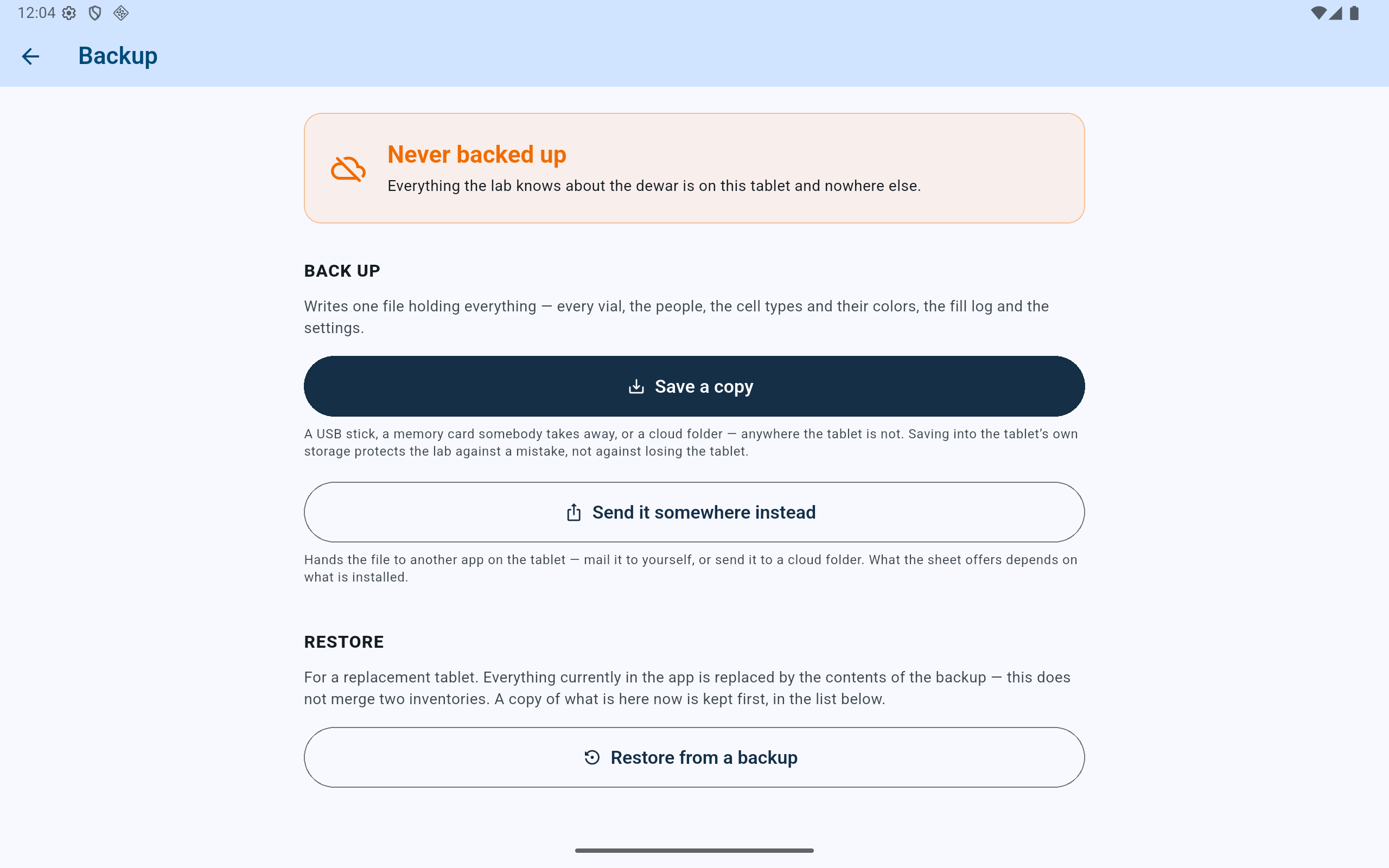
Choose a destination outside the device, and keep the file unchanged through the update.
- Save the whole lab as one backup file.
- Choose an approved destination outside the device.
- Do not start a restore while preparing for an update.
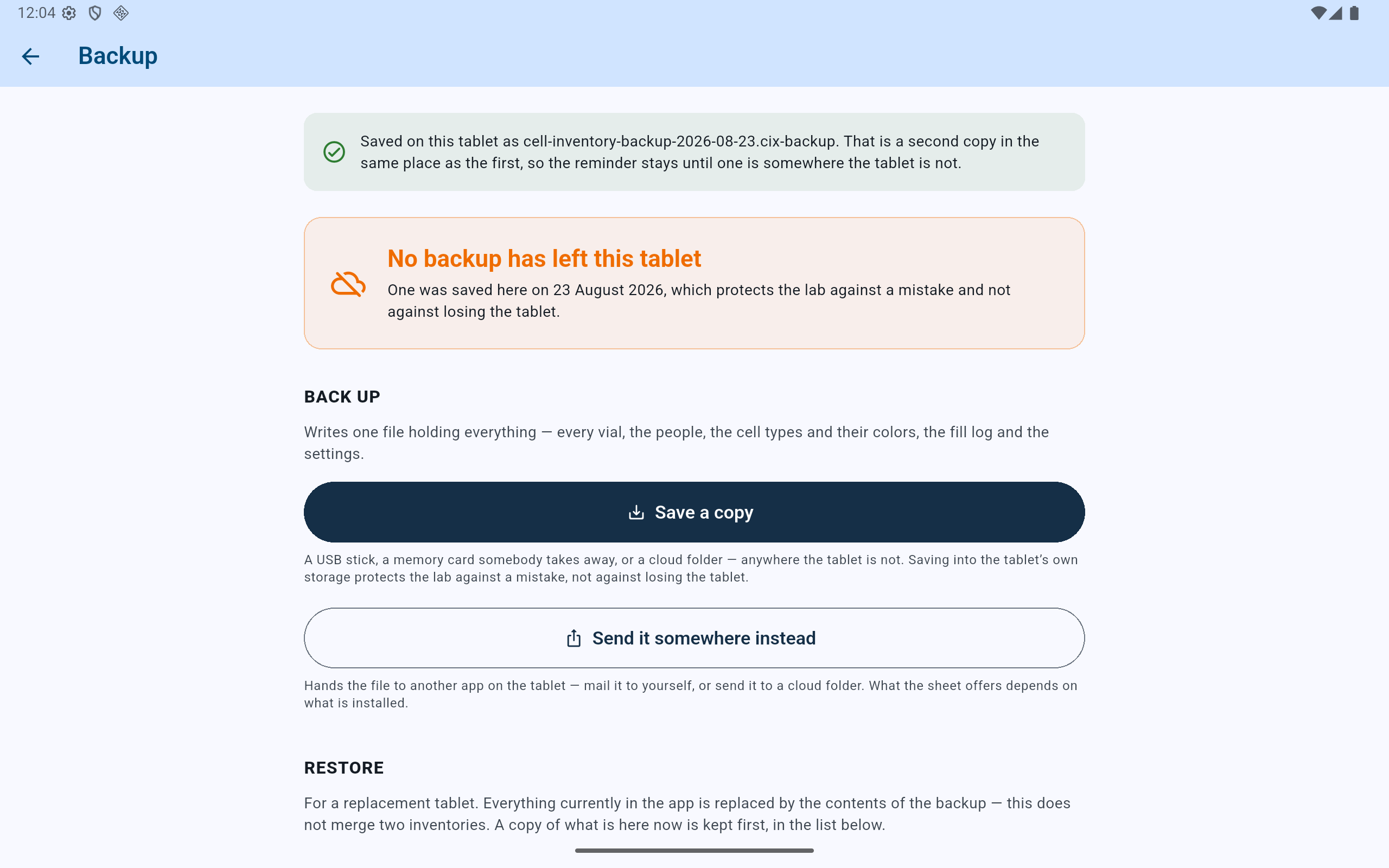
The app's message is the first check. Then look at the destination for the file, with today's date and a size above zero.
- Read the confirmation and its time.
- Check separately that the file is outside the device.
Microsoft Store · Google Play
Let the update install over the app.
Never uninstall CryoIndex to update it. Uninstalling can remove the working lab, and the automatic copies kept on the device with it. Do not clear the app's storage or install a package from anywhere but the official store listing, and do not edit the backup.
- Windows. Microsoft Store updates can install automatically while the PC is online. The Store offers a temporary pause of app updates, not a way to turn them off for good. An update can also be installed by hand from the Store's Library.
- Android. Google Play updates apps automatically unless its Auto-update apps setting is off, or automatic updates are off for CryoIndex on its own page in Play. Then Play normally waits for someone to update the app by hand, though Google notes that a critical security update can still install on its own.
- A device kept offline never updates itself. Bring it up to date when the lab decides to, in the same order: backup, update, checks.
Keep the device powered and leave the app closed while the update installs.
Before work resumes
Check the lab before returning the device to the bench.
- Open CryoIndex and compare the lab name, the dashboard's counts and the backup status with your notes.
- Look over the lab members, cell types, dewars, recent activity, the nitrogen status and anything outstanding.
- Search the vials you noted and compare where each is stored, and its details.
- Open one box, one fill-log entry and the Backup screen, without changing anything.
- If anything is wrong, stop entering data, and keep both the pre-update backup and the device as it is, for investigation.
- Once the updated app is accepted, save a new external backup from it.
Two devices, or a spare
Update every device before moving a backup between them.
An older CryoIndex refuses a backup made by a newer one, and changes nothing when it does. When the lab keeps a second tablet or PC, update both before carrying a backup from one to the other.